How to Reverse Audio on iPhone
You want to hear something backwards: your own voice, a voice memo, a laugh you recorded at dinner. Here's how to reverse audio on iPhone with the apps Apple already makes, and what to do when only half of it plays backwards.
Written by Revoo Team10 min readUpdated
Your iPhone records voice memos all day, but there's no button in Voice Memos that plays one backwards. The reverse switch does exist on iPhone. It's in GarageBand, tucked into the settings of a recording on a track, a menu most people never open.
Getting a memo there takes a few hops: save it to Files, import it into a GarageBand song, then flip the switch. Two things trip people up on the way, a recording that comes in cut short and a backwards version that never leaves GarageBand, and both are quick to fix once you know they're coming.
To reverse audio on iPhone with Apple's own apps, use GarageBand: put the recording on a track, double-tap it, choose Settings and turn on Reverse. Voice Memos has no reverse option, so save a memo to Files first and import it. Set the song section to Automatic so the whole recording comes in, then share the song as audio to keep the backwards version.
Can You Reverse Audio on iPhone Without an App?
Yes, with GarageBand, Apple's own music app, but not with Voice Memos. As of iOS 26 (October 2026), Apple's guide to playing a recording in Voice Memos lists four playback options: playback speed, Enhance Recording, Skip Silence and Studio Sound. None of them plays a memo backwards, and Apple notes that changing them doesn't affect the recording itself.
GarageBand is where the switch lives. Apple's GarageBand guide for iPhone lists Reverse among the settings of a region, the block that holds a recording on a track in Tracks view. Regions from Audio Recorder recordings and from imported audio files are blue and show the waveform inside, so you can see exactly what you're about to flip. If GarageBand isn't on your phone, it's a download from the App Store.
The other no-install route is a web reverser opened in Safari: pick the file from Files, then play or download the result. Before you use one, read the tool's own page to see what it does with your file.
How to Reverse a Recording in GarageBand
Record or import the sound, open its region's settings, and swipe Reverse on. It takes about a minute the first time and four taps after that.
Record with Audio Recorder.
Start a new song in GarageBand, choose the Audio Recorder, tap record, say your line, then stop. To reverse a file you already have, like a voice memo, use the import steps in the next section instead.
Open Tracks view.
Tap the Tracks button. Your recording sits on its track as a blue region with the waveform inside.
Turn on Reverse.
Double-tap the region, choose Settings from the Edit menu, swipe the Reverse switch right, then tap Done.
Play it.
Go back to the start of the song and tap play. The end of the recording now comes first. Swipe Reverse off again to hear it forwards.
Short clips are the most fun backwards. A two- or three-second sentence, a laugh or your name is easy to listen to several times; a minute of talking turns into a long stretch of noise.
How to Reverse a Voice Memo on iPhone
Save the memo to Files, then import it into a GarageBand song: 4 steps, a couple of minutes the first time. Voice Memos can't hand a recording straight to a track, so Files is the bridge.
Save the memo to Files.
Open Voice Memos (in the Utilities folder), tap the recording, tap the More button, then Share. Scroll down, tap Save to Files, pick a folder and tap Save. By default it saves as an .m4a file, with layered recordings flattened and Spatial Audio turned into stereo.
Set the song section to Automatic.
In a new GarageBand song, set the song section's length to Automatic. Otherwise GarageBand imports only the part of the memo that fits the current section.
Import it from Files.
Tap the Tracks button, tap the Loop Browser button in the control bar, then tap Files. Tap Browse items from the Files app and pick the memo.
Drag it onto a track and reverse it.
Drag the file left or right to show Tracks view, line its left edge up with the start of the ruler, and let go. Then double-tap the new region, choose Settings and turn on Reverse.
The same Save to Files step works for any reverser app that imports from Files. In Revoo it's the Studio's Import button, then Audio or Video from Files, and the memo is playing backwards a few seconds later.
How to Save and Share the Reversed Audio
Share the GarageBand song as an audio file. Reverse is a setting on the region, so until you share the song, the backwards version only exists inside GarageBand.
In the My Songs browser, touch and hold the song, then tap Share. Tap Song, choose an audio quality, fill in the title, then tap Share. From the share sheet, tap Save to Files to keep the file, or send it straight to a chat. Apple says a song can also be shared as a GarageBand project or as a ringtone, and a reversed laugh makes a memorable ringtone.
Trim before you share. A clip that starts with three seconds of backwards silence loses people before the fun part. Switch Reverse off, tap the region and drag its right edge in to where the sound stops, then switch Reverse back on.
What If the Reverse Doesn't Work?
Most problems are one of three things, and each takes under a minute to fix.
Only part of the memo came in. The region was cut at the end of the song section. Set the section to Automatic and import again, or make the section longer and drag the region's right edge out so more of it plays.
The file isn't in the list. GarageBand imports AIFF, WAV, Apple Loops, AAC and MP3 audio files and converts them to 44.1 kHz, 16-bit. A song you only stream in a music app isn't a file in Files, so there's nothing to pick.
The backwards version starts with silence. The quiet bit at the end of your recording now plays first. Trim it off the way the sharing step above describes, and next time stop recording the moment you finish.
What Voice Memos and GarageBand Don't Do
They'll get any recording backwards, but every recording is a small project. Voice Memos records well and has no reverse at all, and GarageBand needs a song, a track, a region and a settings menu before you hear anything.
The honest gap: GarageBand's Reverse is free, made by Apple, and sits next to real editing tools, so if you're building something with a backwards sound, a song intro or a sound effect, it's the better choice. Where it gets slow is the everyday version: you say something, want to hear it backwards right away, then play it forwards again to compare. That's 3 taps in a reverser app (record, stop, play backwards) and about 10 in GarageBand, and it ends with a project to tidy up in My Songs.
The other gap is keeping both directions. In GarageBand the forwards and backwards versions are the same region with a switch, so comparing them means opening Settings each time, and sending both means sharing the song twice.
How Revoo Helps You Reverse Audio on iPhone
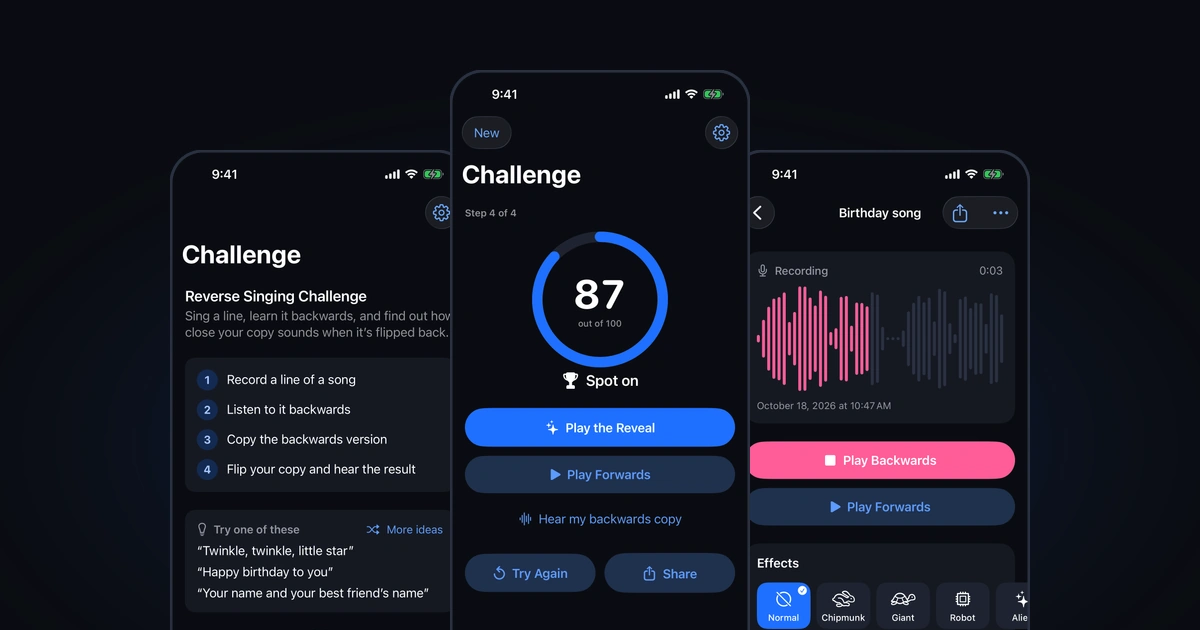
Revoo's Studio is the short version of everything above. Tap Record, say your name or laugh, then tap to stop, and Revoo reverses the take the moment you stop. Play Backwards and Play Forwards sit side by side, so the two directions are one tap apart. Each Studio recording stops on its own at 5 minutes.
For a voice memo or a song file, tap Import and choose Audio or Video from Files; Sound of a Video in Photos takes the sound from a clip. Files longer than 10 minutes keep their first 10 minutes. Every take lands in the Library, where you can rename it, mark it a favorite and share the Original or Backwards version. And if a backwards line makes you want to copy it, the Challenge tab turns that into a game.
Revoo plays sound backwards; it doesn't find or decode hidden messages, and it can't import songs from Apple Music or Spotify, only files in Files and videos in Photos. Recording, reversing, playing both ways, the challenge and its reveal video, audio import and backwards selfie clips are free and unlimited, with no ads and no account. Effects, speed, pitch and loop, the score, reversing videos from Photos and exports without the Revoo mark come with Revoo Pro. iPhone and iPad.
Frequently Asked Questions
Can Voice Memos play a recording backwards?
No. In iOS 26, Voice Memos' playback options are playback speed, Enhance Recording, Skip Silence and Studio Sound, and none of them reverses a recording. To hear a memo backwards, share it, tap Save to Files, then import it into GarageBand and turn on Reverse in the region's settings, or open it in a reverser app.
Is there a free way to reverse audio on iPhone?
Yes. GarageBand, Apple's music app, has a Reverse switch in a region's settings: double-tap the recording in Tracks view, choose Settings and swipe Reverse on. Revoo also records and reverses audio for free, with no limit and no ads, and imports audio files and the sound of videos. Its voice effects, speed and pitch come with a subscription.
Can I reverse a song from Apple Music or Spotify?
Not a streamed song. Reversing works on audio files you can open in Files, such as an MP3 you bought or made yourself. Revoo, for example, imports files from Files and the sound of videos in Photos, and songs from streaming apps like Apple Music and Spotify can't be imported. If you own the song as a file, import that instead.
How do I reverse the sound of a video on iPhone?
GarageBand imports audio files (AIFF, WAV, Apple Loops, AAC and MP3), not videos, so you need the sound on its own first. In Revoo, tap Import in the Studio, then Sound of a Video in Photos: it takes the clip's sound and reverses it, free. To reverse the picture as well, the Video tab records a selfie clip and plays it backwards with its sound.
What if my voice backwards sounds like nonsense?
It's supposed to. Backwards, a word's last sound comes first, vowels stretch, and an s at the end becomes a hiss at the start, so a sentence turns into a language nobody speaks. Short, clear lines are the most fun to hear. If it's too muddy even forwards, record again closer to the microphone in a quiet room.
Sources and further reading
These links are for further reading.
- Play a recording in Voice Memos on iPhone (Apple Support)
- Export a Voice Memos recording to Files on iPhone (Apple Support)
- Change region settings in GarageBand for iPhone (Apple Support)
- Import audio and MIDI files into GarageBand for iPhone (Apple Support)
- Share songs with GarageBand for iPhone (Apple Support)
Say it. Hear it backwards.
Download Revoo, record a word, a song or a laugh, and play it backwards the moment you stop.